In short
- A Kindle keeps every highlight in one file, My Clippings.txt, in the order you made them.
- Lattio reads that file, or a Readwise CSV export, and sorts the highlights by book.
- Each book becomes a card; each highlight an excerpt card with its note and tags, ready to group and connect.
- Turn the highlights you want to keep into review cards, and export them to Anki on Pro.
Where your Kindle keeps its highlights
Connect a Kindle to your computer with a cable and open it like a USB drive. In the documents folder is My Clippings.txt: every highlight and note you made on that Kindle, from every book, one after the other. Copy it somewhere handy.
If you use Readwise, export your highlights as CSV from its export page instead. That file includes highlights from Kindle and the other sources Readwise collects.
Import the highlights into Lattio
Pick My Clippings.txt or the Readwise CSV.
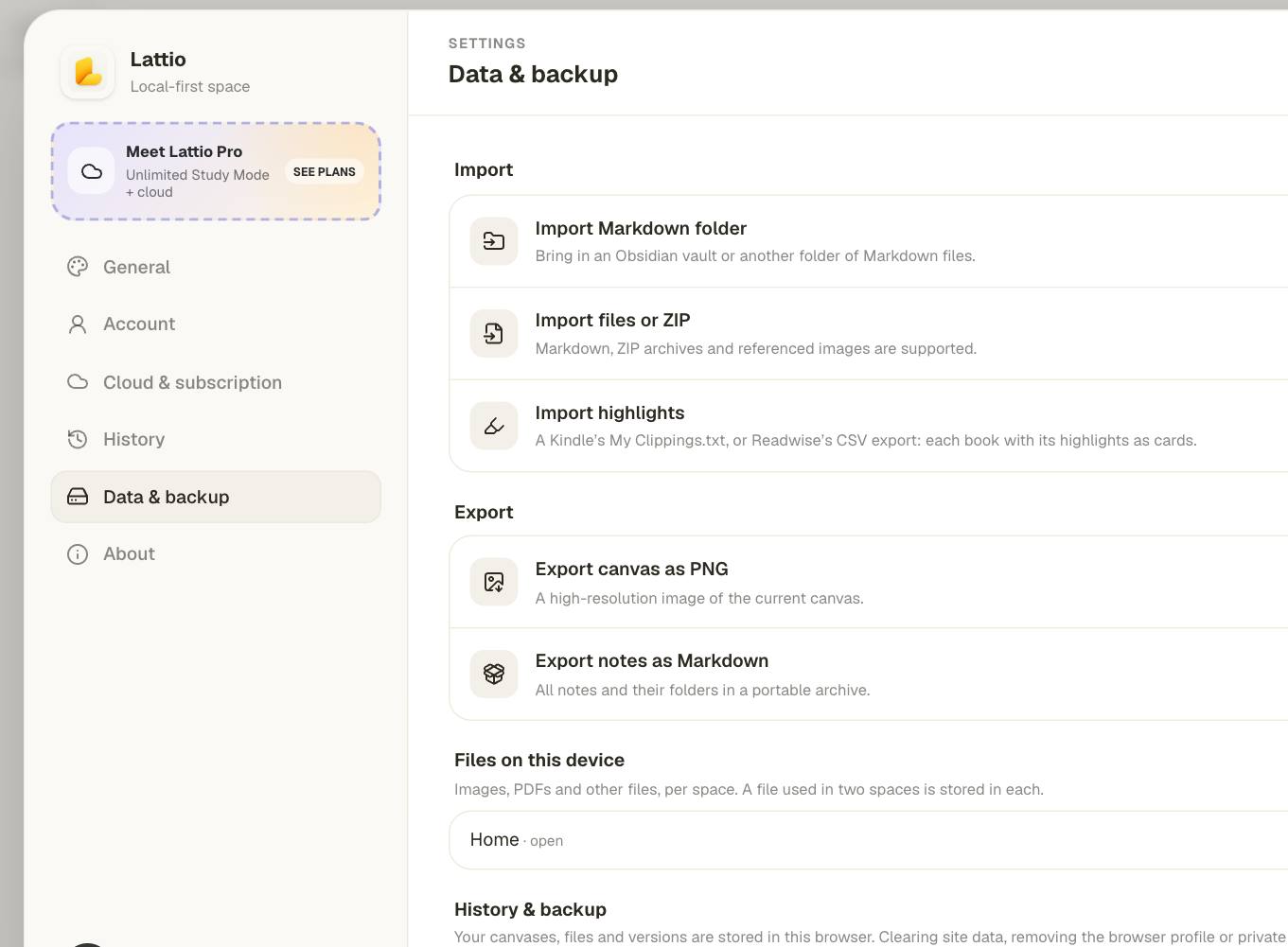
Lattio lists the books it found with the number of highlights in each. Tick the ones you want; the whole import is one step, so undo takes it back.
Each book is a card. Click it to read its highlights one after the other in study mode, beside a notes canvas holding a card for every highlight, with your Kindle notes and tags on them.
Turn a pile of highlights into ideas
Highlights from a book are a list in reading order. On the canvas you sort them into what they’re about:
- Group the highlights on one theme under a title, and add a Summary card in your own words.
- Tag them (
#habits,#decision-making) and find every highlight on a theme across books with ⌘K. - Connect a highlight to the one it builds on, and let Auto layout draw it as a mind map.
- Put the book cards next to notes and PDFs on any canvas, so what you read sits with what you write.
Remember what you highlighted
Add a highlight to review from its toolbar. Bold or underline the words that matter and they become blanks on the recall card. Lattio brings each card back by how well you remembered it.
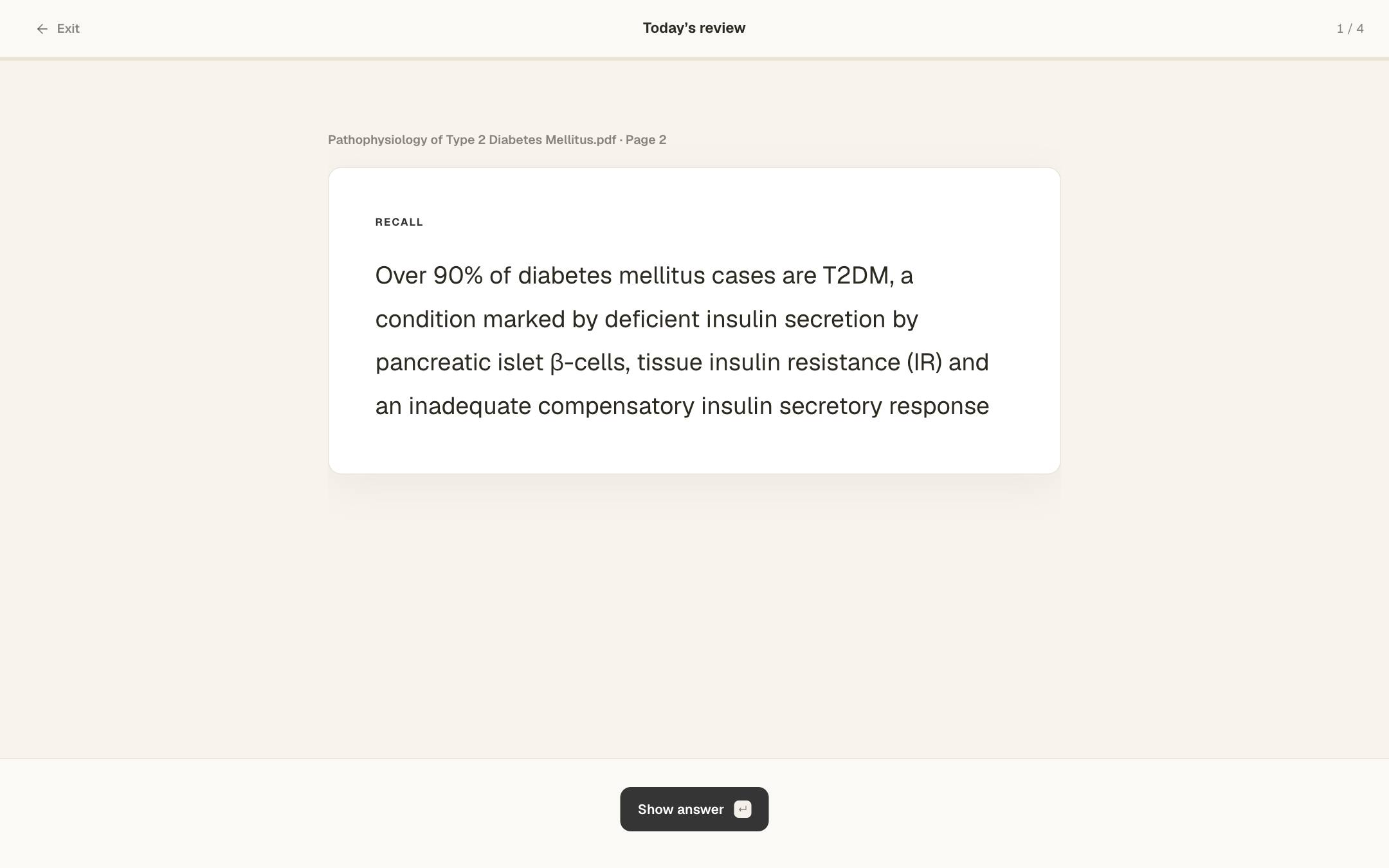
On Pro, review mode exports your cards to Anki as a text file: cards with blanks as Cloze notes, the others as Basic notes. In Anki, choose File → Import.
Frequently asked questions
How do I export Kindle highlights?
Connect the Kindle to a computer and copy My Clippings.txt from its documents folder. Lattio imports that file directly, with every book in it.
Can I import highlights from Readwise?
Yes. Export your highlights from Readwise as CSV and choose that file in Settings → Data & backup → Import highlights.
Can I send Kindle highlights to Anki?
Yes, on Pro. Add the highlights to review in Lattio, then export them from review mode as a file Anki imports, with marked words as cloze deletions.
Is importing highlights free?
Yes. Import is on every plan. On Free, each imported book counts toward the five things in study across your spaces; Pro has no limit.
Start thinking spatially with Lattio
Notes, PDFs, and ideas on an infinite canvas. Free, offline-first, and stored right on your computer.