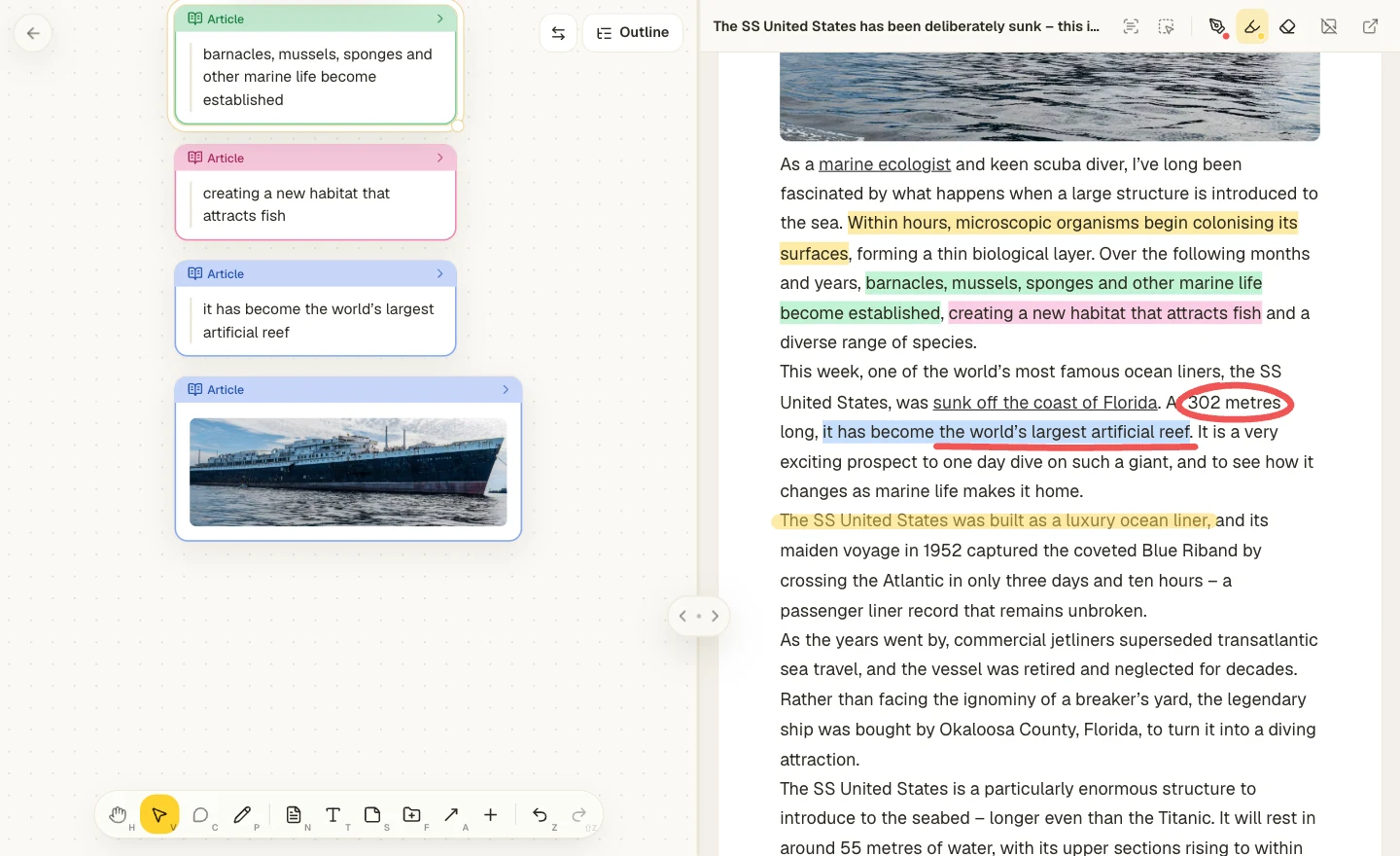
Paste a link, turn it into a clean article, and study it with the same highlights, handwriting and excerpt cards as a PDF.
An article with highlights and handwriting beside its excerpt cards.
Read and highlight in the web app
Choose Read and highlight on a link card to open the page as an article in Study mode. It now works in the browser as well as in the desktop app.
PDF tools for articles and EPUBs
Draw a rectangle to turn a passage or part of a picture into a card, and write, highlight freehand or erase with the pen. Your strokes stay on their words when the text reflows.
Cleaner articles
Lattio keeps the lead photo, charts and video thumbnails, and leaves out placeholder images. Turn on Text only to hide pictures while you read.
A clearer message when a site says no
Some sites block the web app from reading them. Lattio now says so and suggests the desktop app, which can usually open them.
Smaller fixes
Handwriting draws above highlights, the back button sits in the document header when the document is on the left, and note history shows checklist items as they were.
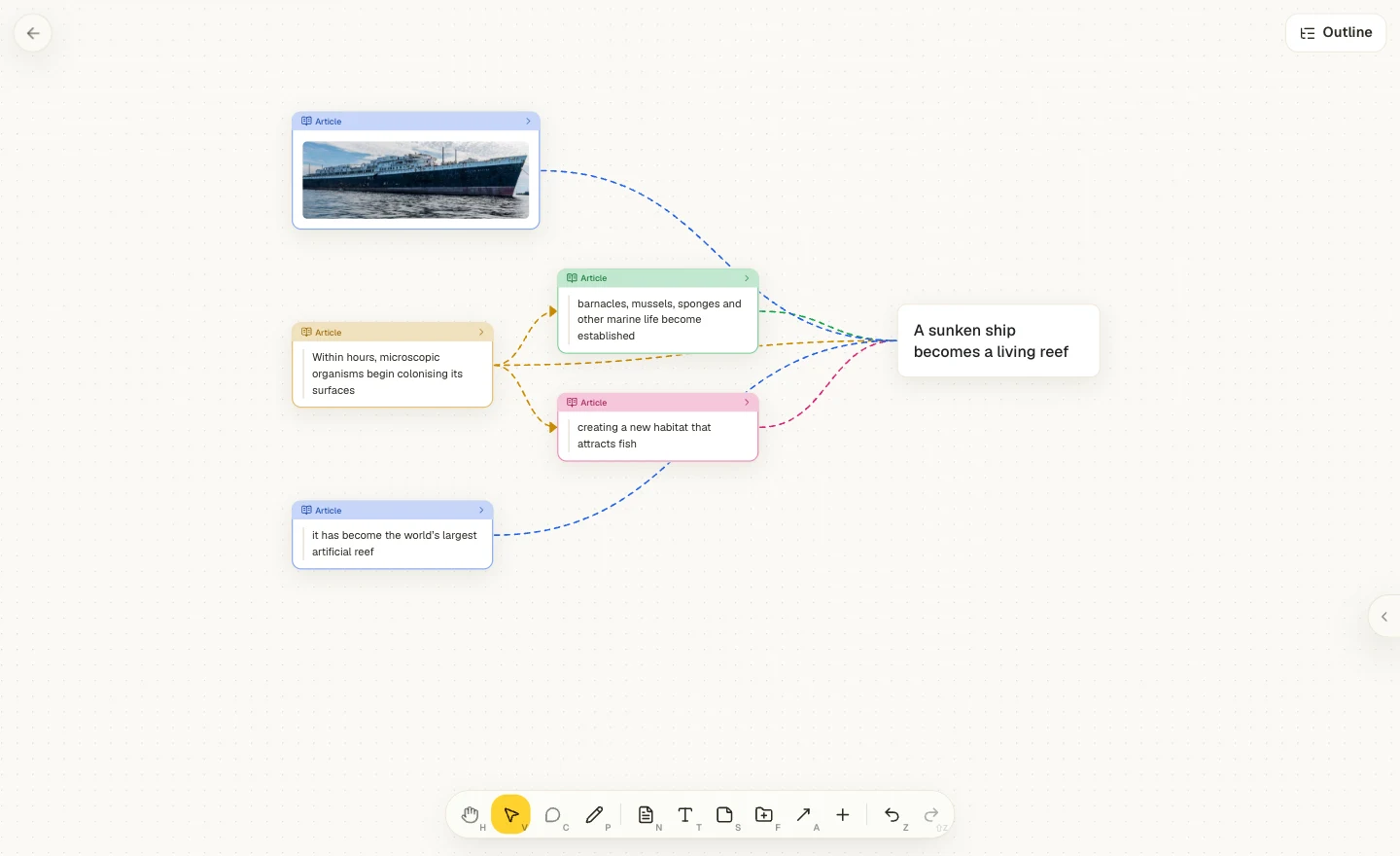
Circle a passage on a PDF, sketch a connection between your notes, or put the document on the left in Study mode.
Study mode with the PDF on the left and the notes canvas on the right.
Handwriting on the canvas and in PDFs
Draw with a stylus or mouse. Choose a stroke style, hold at the end of a stroke to straighten it, and erase a whole stroke or just part of it. In PDFs, you can also highlight freehand and export your ink with the document.
Put the document on the left
Use the swap button in Study mode to put your document on the left and your notes on the right. Lattio remembers your choice.
Open Handwriting with P
Press P on the canvas to start writing. Click a tool to select it, then click it again for settings such as color, stroke width, or eraser size.
Simpler theme choices
The border marks your selected theme in Appearance settings.